Accessing Full Text with Mason Catalog Search
Learning Outcome
After using this tutorial, you will be able to get full text of journal articles, news articles, and other online resources as you search the library catalog.
Video Tutorial
Step-by-Step Guide
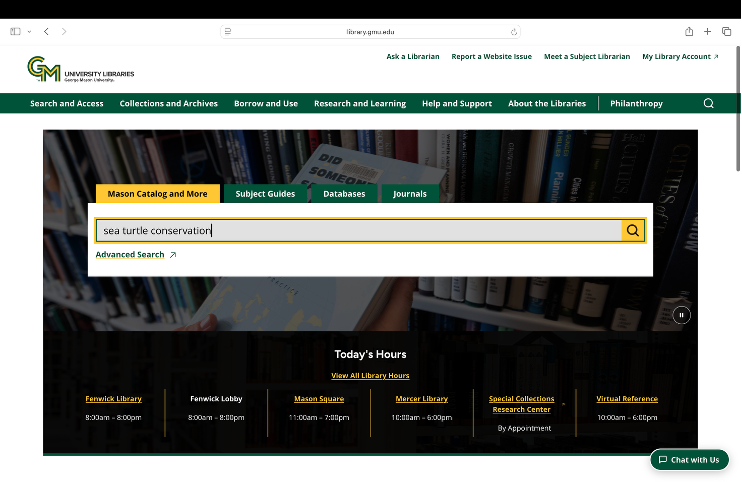
Begin on the library homepage, library.gmu.edu, and type your search terms into the main search box. For this example, we’ll search for “sea turtle conservation."
Navigate to the Availability category of the Refine Your Results menu on the left-hand side of the page, and select "Available online.”

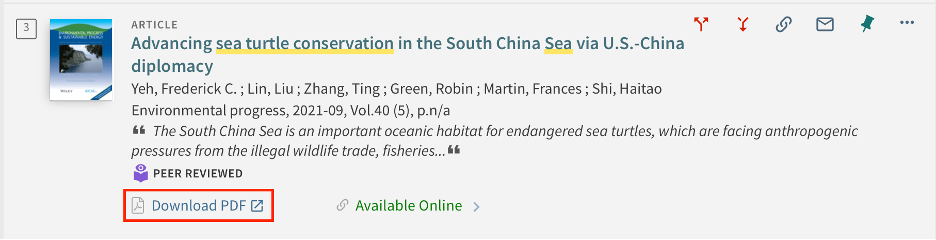
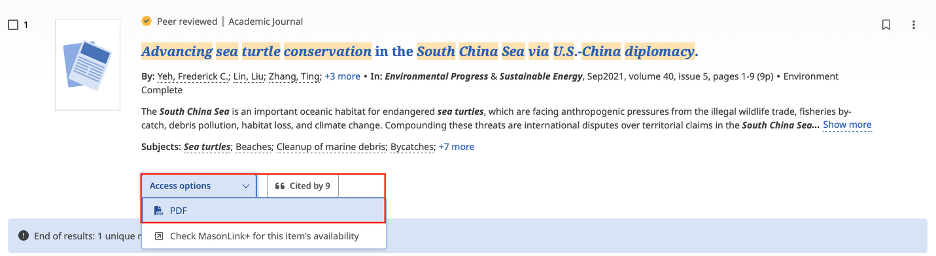
Look for a “Download PDF” button on the resource you want to view. If the resource has a “Download PDF” button, select it to open a PDF of the article. A new tab will open. You may be asked to log in with your George Mason credentials.
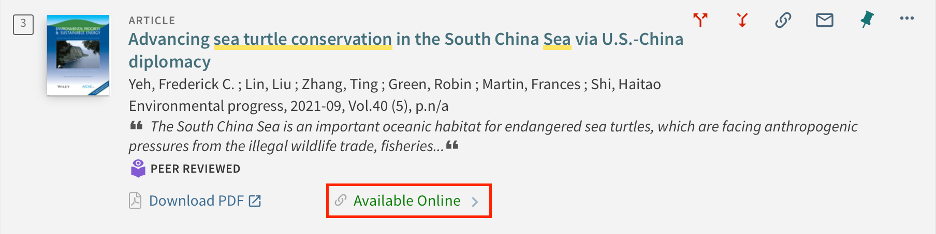
If there is no “Download PDF” button, select the link“Available online.” This opens the full item record.
Find the section of the item record called “View Online” and the subsection called “Full text availability.”
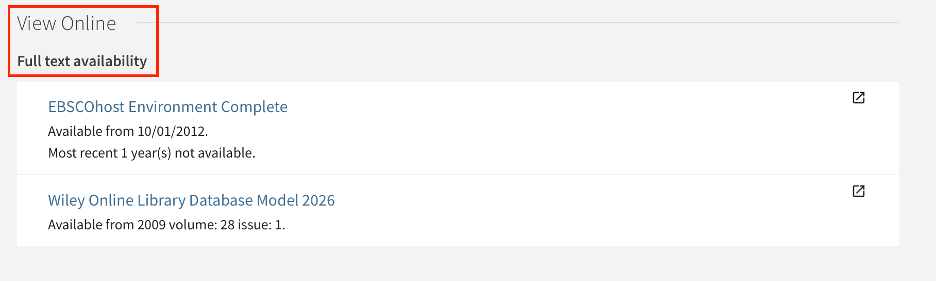
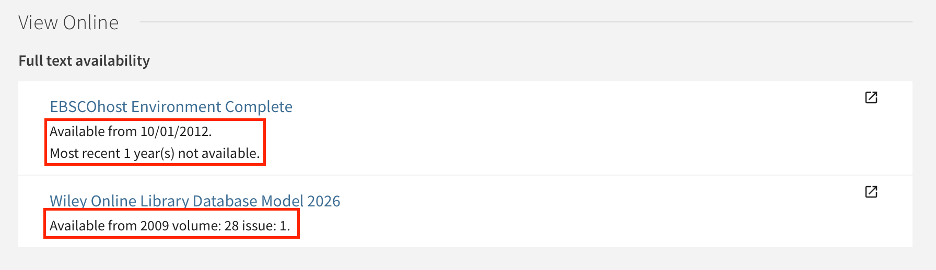
Under “Full text availability,” the page lists the databases which have access to the article. Take note of the date range under each database to ensure your article is within that scope. Select a database whose date range includes your article’s publication date.
A new tab should open to give you access to the full text of the resource. Each content provider has its own look, so if you don’t see full text on the page right away, you may need to look for an “Access options” button, a “download PDF” button, or something similar to view the full text.
More Resources
To find articles and other resources in your discipline, browse your subject guide. If you have questions or need more help, review our other tutorials on finding library resources or reach out to us through Ask a Librarian.

